
Deploy to Ploy button
Let users clone a GitHub template, configure secrets, and deploy it to Ploy.
Deploy to Ploy button
Add a Deploy to Ploy button to a README, docs page, or website so users can create a repository from your GitHub template and deploy it in one guided flow.
Add the button
Replace the example repository URL with the URL of your public GitHub template:
[](https://meetploy.com/new/clone?repository-url=https%3A%2F%2Fgithub.com%2Facme%2Fmy-template)The destination is https://meetploy.com/new/clone. URL-encode the value of repository-url and any optional parameters.
Prepare the template
The source repository must:
- Be public
- Be marked as a template on GitHub
- Contain at least one valid
ploy.yaml
If the repository contains multiple valid Ploy projects, the user chooses which ploy.yaml to deploy. A single project is selected automatically.
Customize the link
Use query parameters to provide defaults and explain which secrets the template needs.
| Parameter | Description |
|---|---|
repository-url | Required. Public GitHub template repository URL. |
repository-name | Default name for the new repository. |
project-name | Default name for the Ploy project. |
ploy-config | Path to the ploy.yaml to use when the template contains multiple projects. |
env | Comma-separated environment variable names, such as DATABASE_URL,OPENAI_API_KEY. |
envDescription | Instructions shown above the secret fields. |
envLink | HTTPS link to instructions for finding the secret values. |
For example:
https://meetploy.com/new/clone?repository-url=https%3A%2F%2Fgithub.com%2Facme%2Fmy-template&repository-name=my-app&project-name=my-app&env=DATABASE_URL%2COPENAI_API_KEY&envDescription=Add%20the%20credentials%20required%20by%20this%20template.&envLink=https%3A%2F%2Fexample.com%2FdocsPut only environment variable names in the URL, never secret values. Ploy asks the user for values after the repository is connected and stores them as secret project variables before the first build starts.
Environment variable names must use uppercase letters, numbers, and underscores, cannot start with a number, and are limited to 20 per link.
What users see
The link opens a guided flow on Ploy:
- The user signs in with GitHub.
- They choose a Ploy organization, repository name, project name, and repository visibility. New repositories are private by default and can be changed to public.
- Ploy creates the repository in the user's personal GitHub account. If necessary, GitHub opens in a new tab with the repository preselected so the user can grant the Ploy GitHub App access.
- The user enters any required secret values and starts the first deployment.
The configuration screen shows the source template and every setting the user can change before repository creation.
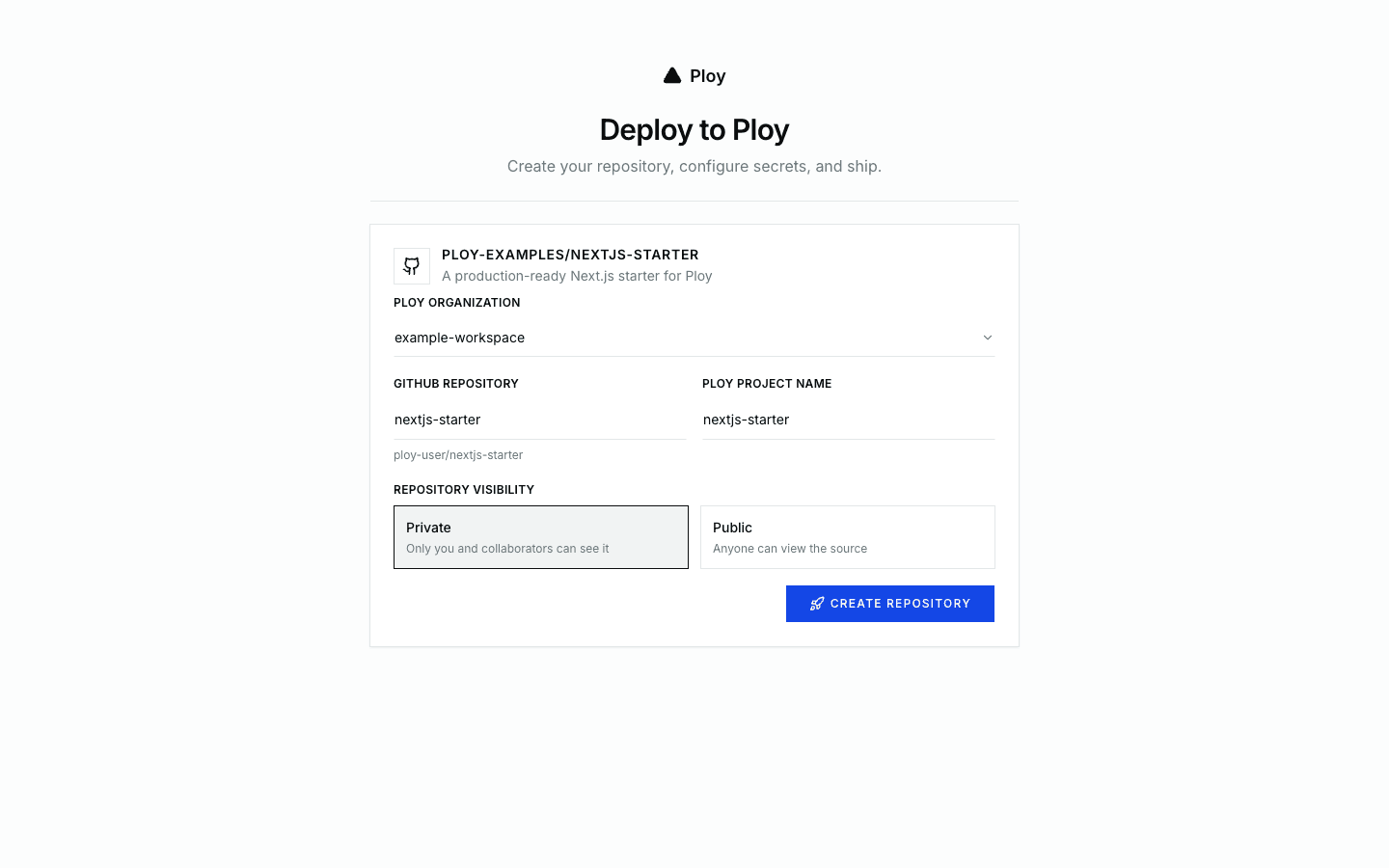
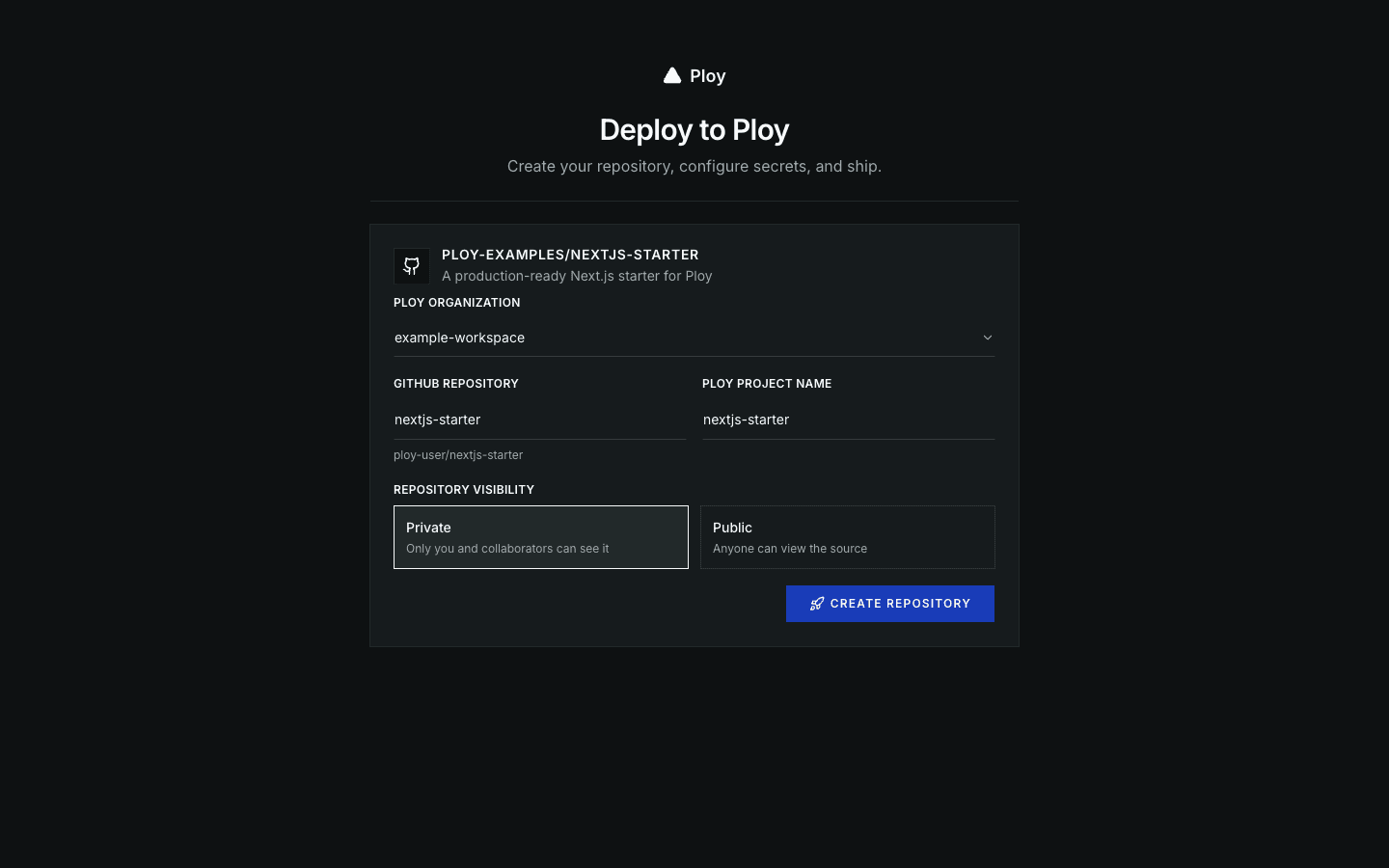
When a template declares optional environment variables in the deploy link, their values are entered directly in Ploy after the repository is connected. They are not copied into the repository or included in the deployment URL. Templates that do not declare variables skip this step.
Deployment attempts expire after 24 hours if no repository was created. Once the repository exists, the flow remains resumable so users can finish GitHub App setup and deployment later.
Next steps
- Configuration - Configure projects with
ploy.yaml - Environment Variables - Manage variables and secrets after deployment
How is this guide?
Last updated on